Each reference answers a different question. Keep the same display mode and compare the patterns before adjusting brightness, contrast, or sharpness.
4 referencesFullscreen viewLocal in your browser
Choose a reference.
Select a pattern, open fullscreen, and compare the same area of your display.
Local visual check. No upload or installation.
Reference drawing is unavailable. Try another browser to run this test.
Color barsF for fullscreen
Test reference
What to look for
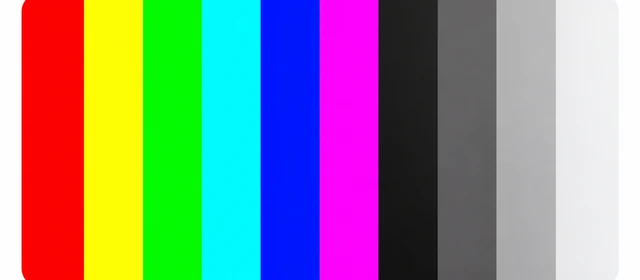
Compare white, yellow, cyan, green, magenta, red, blue, and black. These are browser RGB references, not a broadcast calibration signal.
Rendered reference
Preparing…
Reference follows the current browser pixel ratio.
Fullscreen controls
←→ Change reference F FullscreenH Hide or show controls
Tap the fullscreen pattern to hide or restore controls. Press Escape or use Exit to leave fullscreen.
A different reference for each question.
Use color, tone, and repeated detail together. A single attractive image can conceal differences that a simpler reference makes easier to compare.
01
Eight full-range color bars
The bars run from white through yellow, cyan, green, magenta, red, blue, and black. Compare whether each region looks distinct and uniform. These are full-range browser RGB colors, not a broadcast test signal with calibration targets. They cannot establish color accuracy or a display’s gamut by eye.
02
Sixteen grayscale steps
The stepped reference contains sixteen equal-width gray levels, including black and white. Compare neighboring steps from a normal viewing position. If several blend together, repeat the check with familiar content and inspect the current picture mode. The steps are equal RGB code increments, not equal measured light increments.
03
A gradient and a checkerboard
The gradient draws a continuous black-to-white transition so you can compare visible bands or tint. The checkerboard instead repeats hard edges at selectable sizes. Use the gradient for tonal transitions and the squares for fine detail. Their appearance can be affected by different stages of the browser, signal path, and panel.
Compare patterns in a steady setup.
Keep the display mode, room lighting, and viewing distance consistent. A controlled comparison is easier to interpret than changing several settings at once.
01
Start with familiar settings
Use the intended output resolution, begin with browser zoom at 100%, and choose a comfortable normal-use brightness. Note whether an HDR mode, night filter, or another picture adjustment is active. The browser draws references through that existing pipeline; it does not disable processing or replace a hardware calibration profile.
02
Move between the references
Open fullscreen with the button or F while the tester is focused. Use the arrow keys, previous and next controls, or reference selector to switch patterns. Hide the toolbar with H or by tapping the field, and use the same action to restore it. Escape leaves fullscreen. On browsers without fullscreen support, the preview remains usable.
03
Return to the same comparison
If you adjust a display setting, change one value and repeat the same reference. Use detail size and inversion for checkerboard comparisons, then inspect ordinary text, photos, or video. A change that makes one reference more striking is not automatically a better setting for all of your content.
Turn an observation into a useful next step.
The page presents patterns rather than a pass/fail result. Use what you see to choose a more specific check or a repeatable comparison.
01
Gray steps merge near an endpoint
Compare the same steps with a different picture mode or a familiar source. Ambient light, black level, contrast processing, and output-range settings can affect visibility. Sixteen levels provide a broad comparison; they are not a precision clipping chart and cannot establish whether every near-black or near-white code is preserved.
02
A gradient shows bands or tint
Repeat the view at the same settings and position. Browser rendering, output bit depth, image processing, and the panel can all influence the transition. This canvas cannot identify the responsible stage. A clean-looking gradient also does not certify a ten-bit pipeline, HDR performance, or a calibrated neutral response.
03
Small squares look uneven
Try a larger detail size and compare the center with the edges. Fine repetition can reveal scaling or blend visually at a normal viewing distance. Open Sharpness & Geometry for directional lines and shape references, or Screen Tester if the concern is a fixed dot rather than repeated detail.
Display test pattern questions.
Choose a reference according to what you want to compare, and keep the limits of a browser visual check in mind.
Are the color bars a professional calibration signal?+
No. They are eight full-range RGB fields drawn in a browser, without the extra patches, signal encoding, or measurement procedure of a broadcast calibration chart. Use them for a visual comparison of broad color regions. Accurate calibration requires an appropriate measurement device and workflow.
Should all sixteen grayscale steps look equally spaced in brightness?+
The RGB codes are equally spaced, but that does not mean their measured or perceived brightness increments are equal. Display tone response and viewing conditions affect how the steps look. Compare whether neighboring regions remain distinguishable; do not infer a gamma value from this coarse reference.
Can a smooth gradient prove my display supports ten-bit color?+
No. This page does not verify the output bit depth or inspect the complete graphics pipeline. Rendering, processing, and dithering can influence the visible transition. Use the gradient to describe visible banding and compare settings, then consult the hardware and operating-system information for supported signal modes.
Why does the checkerboard change when I resize or zoom?+
The drawing follows the current view size and browser pixel ratio. Zoom, system scaling, and the output mode can change its mapping to the panel. Large references are also bounded to avoid excessive canvas allocation, with a scaling note when needed. Begin at 100% zoom and compare the same detail size and viewport.
Continue your display check.
Use the reference that matches the question you want to answer.