Compare line detail and a geometric reference at your normal resolution. Change one display setting at a time, then return to the same pattern.
3 referencesFullscreen viewLocal in your browser
Choose a reference.
Select a pattern, open fullscreen, and compare the same area of your display.
Local visual check. No upload or installation.
Reference drawing is unavailable. Try another browser to run this test.
Fine linesF for fullscreen
Test reference
What to look for
The left half contains vertical lines; the right half contains horizontal lines. Compare separation, halos, and uneven bands.
Rendered reference
Preparing…
Reference follows the current browser pixel ratio.
Fullscreen controls
←→ Change reference F FullscreenH Hide or show controls
Tap the fullscreen pattern to hide or restore controls. Press Escape or use Exit to leave fullscreen.
Three ways to inspect detail.
Sharpness and geometry are related to how the image reaches the panel. These references separate repeated detail from overall image shape.
01
Fine vertical and horizontal lines
The line reference divides the view into two directions. Compare whether neighboring lines remain distinct and whether either direction has stronger bands, halos, or blur. Begin with a larger detail size, then reduce it. A very fine repeated pattern can blend at a normal viewing distance without proving a defect.
02
A repeated checkerboard
The checkerboard changes both horizontal and vertical detail at once. It is useful for comparing how repeated small shapes appear across different parts of the screen. Try more than one square size. A pattern that looks uneven at one frequency may be interacting with scaling or the viewing distance.
03
A grid and a round reference
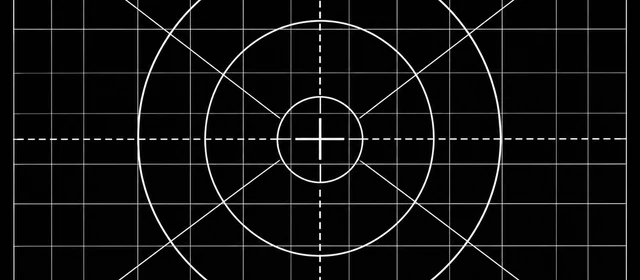
The geometric view contains a square grid, central circle and square, axes, and an outer frame. Look for equal proportions and a complete frame in fullscreen. A circle that appears stretched can be a reason to inspect aspect-ratio settings or the output path before changing a sharpness control.
Make the comparison repeatable.
A clean setup helps you interpret the pattern. Change one part of the signal path at a time and keep the rest of the comparison steady.
01
Start with the intended resolution
Use the display’s intended native output mode and begin with browser zoom at 100%. Check any aspect-ratio or overscan setting on a connected TV. The operating system, browser, and panel can all scale an image. A reference is most useful when you know which part of the setup changed between comparisons.
02
Open fullscreen and compare locations
Use the fullscreen button or F while this tester is focused. Compare the center and edges, then hide the controls with H or by tapping the pattern. Tap again or press H to restore them. Fullscreen removes much of the interface, but it cannot override system scaling or a monitor’s own processing.
03
Use detail size and polarity deliberately
The detail control changes the size of the rendered line or checkerboard elements. Invert switches the black and white relationship for the supported references. Compare the same size and polarity before judging a setting. The reported reference dimensions describe the drawing, not a measurement of the panel’s physical pixel mapping.
If the edges look wrong.
Treat a visual result as a clue. Different observations call for different comparisons rather than a single universal sharpness value.
01
Halos around otherwise clear edges
Compare a normal image or text with the same display mode. If an outline becomes more prominent as a sharpness setting rises, the processing may be emphasizing edges rather than revealing detail. There is no universal correct menu value: use your model’s guidance and compare small changes against the same reference.
02
Uneven bands or blended fine detail
Try a larger reference element and confirm the output resolution and browser zoom. Fine repeated structures can reveal resampling and interference that are hard to see in ordinary content. Compare another browser or source where practical. This page cannot identify which stage of the image path caused a difference.
03
A stretched shape or missing frame
Check the source resolution, aspect-ratio mode, and any TV overscan setting. Use fullscreen so the frame reaches the visible test area, then compare a familiar image with known proportions. The tool draws a geometric reference; it does not measure your panel dimensions or automatically correct distortion.
Sharpness and geometry questions.
Use these answers to separate the drawn reference from the settings and hardware that display it.
Does one reference pixel always equal one physical screen pixel?+
Not necessarily. The drawing accounts for the browser’s current pixel ratio, but system scaling, output resolution, browser zoom, display processing, and large-reference limits can affect the final mapping. Check the rendered reference dimensions and any scaling note. Use the pattern as a comparison, not proof of exact physical pixel alignment.
Why can a one-pixel checkerboard look gray?+
At a normal viewing distance, small black and white elements can blend together perceptually. Image scaling can also change their appearance. Try a larger detail size and compare the same area from a consistent distance. An averaged-looking pattern by itself does not establish a faulty display.
Can this test set my monitor’s sharpness automatically?+
No. It provides visual references while you make any desired change in the monitor or source settings yourself. It cannot read the menu, select an optimal value, remove processing, or certify resolution. Keep a familiar image available so a setting that helps one test does not make normal content look worse.
Why do geometry and fine detail need separate checks?+
An image can have the right overall proportions while losing repeated fine detail, or look crisp while being stretched by an aspect-ratio setting. The grid and circle help with shape; lines and checkerboards help with repeated detail. Compare both, then use solid colors if the concern is a point or brightness patch.
Continue your display check.
Use the reference that matches the question you want to answer.